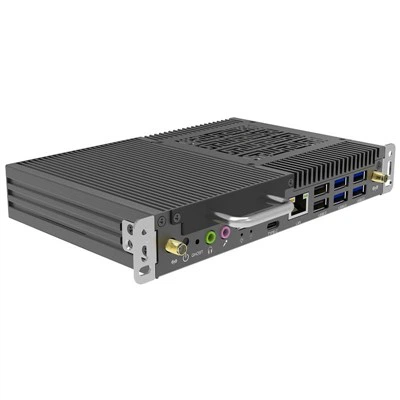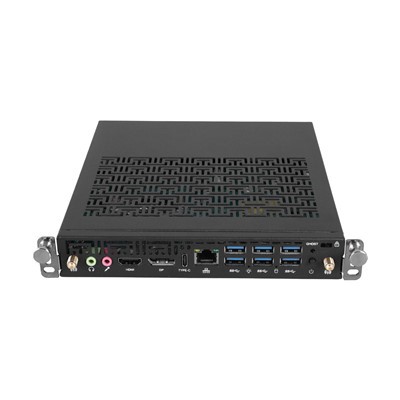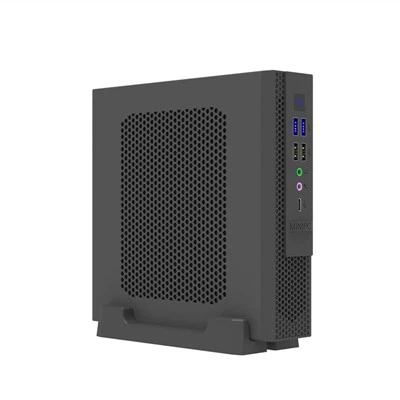

When choosing an OPS PC for an interactive display, digital signage system, or commercial display project, processor performance is only part of the decision.
The ports and connectivity of an OPS PC are equally important.
Different projects may require different combinations of display outputs, USB ports, network connections, audio interfaces, and USB Type-C connectivity. Choosing the right I/O configuration can make installation easier and ensure that the OPS computer module works smoothly with displays, touch systems, cameras, storage devices, and other peripherals.
In this guide, we explain the most common OPS PC ports, including HDMI, DisplayPort, USB, USB Type-C, LAN, and audio interfaces, and explain what each one is typically used for.

Why OPS PC Connectivity Matters
An OPS PC is often installed inside an interactive flat panel display or commercial display. Once installed, it may become the main computing platform for Windows applications, digital signage software, presentations, collaboration tools, video playback, and other applications.
This means the OPS PC needs to communicate with multiple devices.
For example:
- The display needs a video signal.
- A touchscreen may need USB connectivity.
- A camera may require USB.
- The network connection may use Ethernet or Wi-Fi.
- External storage may connect through USB.
- Speakers or other audio equipment may require an audio interface.
- A second display may require HDMI, DisplayPort, or USB Type-C.
Modern OPS modules can therefore include several types of I/O interfaces. For example, SMART's OPS modules include combinations of USB Type-A, USB Type-C, HDMI, RJ45 and audio connectors, depending on the model.
The important point is that not every OPS PC has the same ports or the same capabilities.
1. HDMI on an OPS PC
HDMI is one of the most common video interfaces found on OPS PC modules.
HDMI is designed to transmit digital video and audio through a single cable, making it particularly convenient for display applications.
An OPS PC with an HDMI output can typically connect to:
- Interactive flat panel displays
- Commercial monitors
- Projectors
- TVs
- Secondary displays
- Digital signage screens
For example, SMART OPS PC modules can provide HDMI output for connecting an external display and can also be used to duplicate or extend the computer desktop.
Why HDMI is important for OPS applications
For many commercial display projects, HDMI remains a practical and widely supported connection.
It can be useful when an OPS PC needs to drive:
One main display + one external display
or
An interactive display + secondary monitor
However, buyers should not look only at whether an OPS PC has an HDMI port.
The HDMI version and supported resolution/refresh rate can also matter.
For example, different OPS modules may support HDMI 1.4, HDMI 2.0, or newer implementations. SMART's PCM13 series, for example, specifies an HDMI 2.0 output, while its PCM8 series uses HDMI 1.4 output.
Therefore, when purchasing an OPS PC, check:
- HDMI version
- Maximum resolution
- Maximum refresh rate
- Number of HDMI outputs
- Whether the port is input or output
2. DisplayPort for High-Resolution Displays
DisplayPort (DP) is another important display interface for OPS computer modules.
DisplayPort is commonly used for connecting computers to monitors and professional displays, particularly where high-resolution output or multiple displays are required.
An OPS PC with DisplayPort can be useful for:
- 4K displays
- High-resolution monitors
- Multi-display systems
- Professional presentation systems
- Commercial control environments
Some OPS modules combine HDMI and DisplayPort outputs to provide greater flexibility.
For example, an OPS slot-in PC specification published through Intel's marketplace lists both HDMI 2.0 and DisplayPort 1.4, with support for up to 3840 × 2160 at 60 Hz.
HDMI vs DisplayPort
Both interfaces can deliver high-quality digital video, but the best choice depends on the display and application.
|
Interface |
Typical Use |
|
HDMI |
Interactive displays, TVs, projectors, commercial monitors |
|
DisplayPort |
Computer monitors, high-resolution displays, multi-monitor applications |
For an OPS PC intended for professional display projects, having both HDMI and DisplayPort can provide additional connection flexibility.
3. USB Ports on an OPS PC
USB is one of the most important interfaces on an OPS PC because the computer often needs to communicate with multiple peripherals.
Depending on the model, an OPS module may include:
- USB 2.0 Type-A
- USB 3.0 / USB 3.2 Type-A
- USB Type-C
SMART's OPS modules, for example, provide combinations of USB 2.0 Type-A, USB 3.2 Gen 1 Type-A and USB Type-C connections.
What can you connect through USB?
Common USB peripherals include:
- Keyboard
- Mouse
- USB flash drive
- External SSD
- Webcam
- Document camera
- Microphone
- Touch interface
- Wireless receiver
- Other USB accessories
This makes USB connectivity particularly important for interactive classroom and meeting room applications.
For example, an interactive display may use USB communication for touch functionality while a USB camera and keyboard are connected at the same time.
USB 2.0 vs USB 3.x
The USB version can affect data transfer performance.
USB 2.0 is generally suitable for lower-bandwidth peripherals such as keyboards, mice and some basic accessories.
USB 3.x provides higher data transfer performance and can be more suitable for:
- External SSDs
- High-resolution cameras
- Large file transfers
- Other high-speed peripherals
Therefore, if an OPS PC will be used with multiple peripherals, it is useful to check both the number and type of USB ports, rather than simply looking at the total USB count.
4. What Is USB Type-C Used for?
USB Type-C has become increasingly common in modern OPS PC modules.
One reason is that Type-C can support more than traditional USB data connectivity, depending on the implementation.
Depending on the hardware design, USB Type-C may support:
- USB data transfer
- Display output
- Audio
- Power delivery
- Connection to compatible displays
- Connection to external peripherals
However, a USB Type-C connector does not automatically support all of these functions.
This is an important point when purchasing an OPS PC.
For example, SMART documentation shows that certain OPS modules can use USB Type-C for peripherals and external display connections, while some models also specify power delivery capabilities.
Therefore, when evaluating an OPS PC Type-C port, check exactly what it supports:
USB data only, DisplayPort Alt Mode, power delivery, or a combination of these functions?
This can prevent unexpected compatibility problems during installation.
5. LAN / RJ45 Port for Wired Networking
The RJ45 LAN port provides wired Ethernet connectivity.
For commercial applications, a wired network connection can be particularly useful when the OPS PC needs reliable access to:
- Internet services
- Digital signage platforms
- Remote management systems
- Enterprise networks
- Cloud applications
- Network storage
- Classroom or meeting room systems
An OPS PC may use Gigabit Ethernet for wired network connectivity. For example, an Intel marketplace OPS module specification lists a Gigabit Ethernet port alongside HDMI, DisplayPort, USB and Type-C interfaces.
Why LAN can be important
Wi-Fi is convenient, but some commercial environments prefer wired networking because network infrastructure, security policies, or installation requirements may favor Ethernet.
For example:
Digital signage
A networked OPS PC may need to download updated content from a central management system.
Education
An interactive display may need access to school network resources.
Corporate meeting rooms
The OPS PC may need access to company applications and network services.
For these applications, having an RJ45 LAN port can provide an additional networking option.
6. Audio Interfaces
Although HDMI, DisplayPort and USB usually receive more attention, audio connectivity can also be important.
Some OPS PCs include a 3.5 mm audio input/output, allowing connection to:
- Headsets
- External speakers
- Microphones
- Audio equipment
For example, SMART's OPS modules include 3.5 mm audio interfaces on selected models.
However, many modern displays can transmit audio through HDMI or USB Type-C, so the need for a dedicated analog audio port depends on the application.
For a project requiring external microphones, speakers, or specialized audio equipment, it is worth checking the OPS PC's audio I/O before purchasing.
7. Don't Forget Touch and Peripheral Connectivity
An OPS PC is often installed inside an interactive flat panel, so touch connectivity is an important part of the overall system.
Video output and touch communication are not necessarily handled by the same connection.
For example, an external interactive display may use HDMI for video while a separate USB connection handles touch data.
SMART's documentation provides examples where HDMI is used for video and USB is connected between the OPS module and another interactive display for touch/peripheral communication.
This is why simply checking the video output is not enough.
For an interactive display project, buyers should consider the complete connection chain:
OPS PC → Display → Touch → USB peripherals → Network → Audio
The exact connection method depends on the display and OPS module.
8. What OPS PC I/O Configuration Do You Need?
There is no single I/O configuration that is ideal for every project.
Instead, the right configuration depends on the application.
Interactive Classroom
A typical requirement may include:
- HDMI
- USB Type-A
- USB Type-C
- LAN
- Audio
- Wi-Fi
USB connectivity is especially useful for touch, cameras, keyboards and other classroom peripherals.
Corporate Meeting Room
A meeting room may require:
- HDMI
- DisplayPort
- USB Type-C
- USB 3.x
- LAN
- Audio
The focus is usually on connecting displays, cameras, storage devices and conferencing equipment.
Digital Signage
A signage project may prioritize:
- HDMI or DisplayPort
- LAN
- USB
- Wi-Fi
- Multiple display outputs
Network connectivity can be particularly important when content needs to be managed remotely.
Commercial Display
A commercial display project may require a combination of:
- HDMI
- DisplayPort
- USB
- LAN
- Audio
- Wi-Fi
- USB Type-C
The required interfaces should be determined by the display, peripherals and installation environment.
9. How to Check OPS PC Ports Before Buying
Before purchasing an OPS computer module, it is useful to create a simple I/O checklist.
1. Check the display connection
Determine whether the display requires:
HDMI
DisplayPort
USB Type-C
Another video interface
2. Check the number of displays
If the system needs multiple displays, check how many independent display outputs the OPS PC supports.
3. Check USB requirements
Count the peripherals that will be connected.
For example:
Touch
Camera
Keyboard
Mouse
USB storage
Microphone
Then check whether there are enough USB ports and whether USB 2.0 or USB 3.x is required.
4. Check Type-C functionality
Do not assume that every Type-C port supports video output or power delivery.
Check the detailed specification.
5. Check network connectivity
If wired Ethernet is required, make sure the OPS PC includes an RJ45 LAN port.
Also check the supported network speed.
6. Check audio
If the project requires analog audio input or output, verify that the OPS PC includes the required audio ports.
10. Why I/O Design Matters for Long-Term Commercial Projects
For a commercial display system, the OPS PC may remain in operation for several years.
During this period, the system may need to connect to different peripherals or be integrated into a new environment.
A well-designed I/O configuration gives system integrators more flexibility.
Instead of using multiple adapters or external hubs, a properly configured OPS computer module can provide many of the interfaces required directly on the device.
This can help simplify installation and reduce unnecessary external connections.
Modern OPS architectures are also evolving to support higher-resolution displays and newer connectivity technologies. Intel's OPS 2.0 materials, for example, describe higher-bandwidth interfaces and support for advanced display technologies, showing how the platform continues to evolve with modern interactive displays.
Conclusion
When evaluating an OPS PC, CPU, RAM and storage are important, but connectivity should not be overlooked.
The right combination of HDMI, DisplayPort, USB, USB Type-C, LAN and audio interfaces can determine how easily an OPS PC integrates with an interactive display and its surrounding peripherals.
A simple checklist can help:
HDMI → Display connection
DisplayPort → High-resolution / additional display
USB → Peripherals and touch
USB Type-C → Modern peripherals and supported display functions
LAN → Wired network connection
Audio → External audio equipment
The best OPS PC is not necessarily the model with the largest number of ports. It is the one whose I/O configuration matches the actual requirements of the display system and application.
For system integrators, distributors and commercial display manufacturers, checking the OPS PC ports before purchase can help avoid unnecessary adapters, connection limitations and installation problems later.