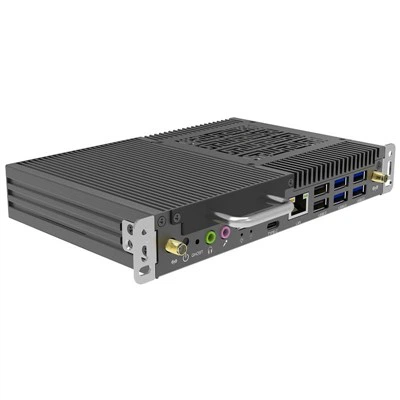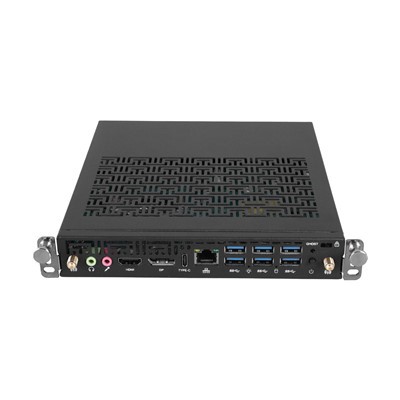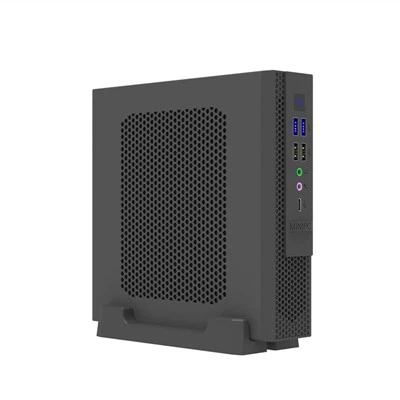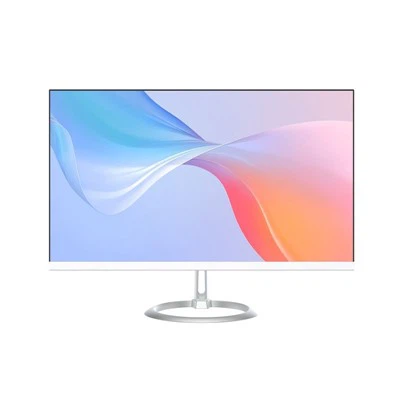

Interactive displays are designed to support long-term use, but the computer hardware inside them may eventually become outdated. A display panel can remain in good working condition for years, while the OPS computer powering the Windows environment may no longer provide the performance required for modern applications.
Slow startup, limited storage, outdated processors, insufficient memory, or new software requirements can all be signs that it is time to consider an OPS PC upgrade.
Fortunately, one of the advantages of the OPS standard is its modular design. Instead of replacing an entire interactive flat panel, users may be able to upgrade or replace the OPS computer module inside the display.
In this article, we explain when an OPS PC should be upgraded, which components may be upgraded, when it makes more sense to replace the entire module, and what to check before installing a new OPS PC.
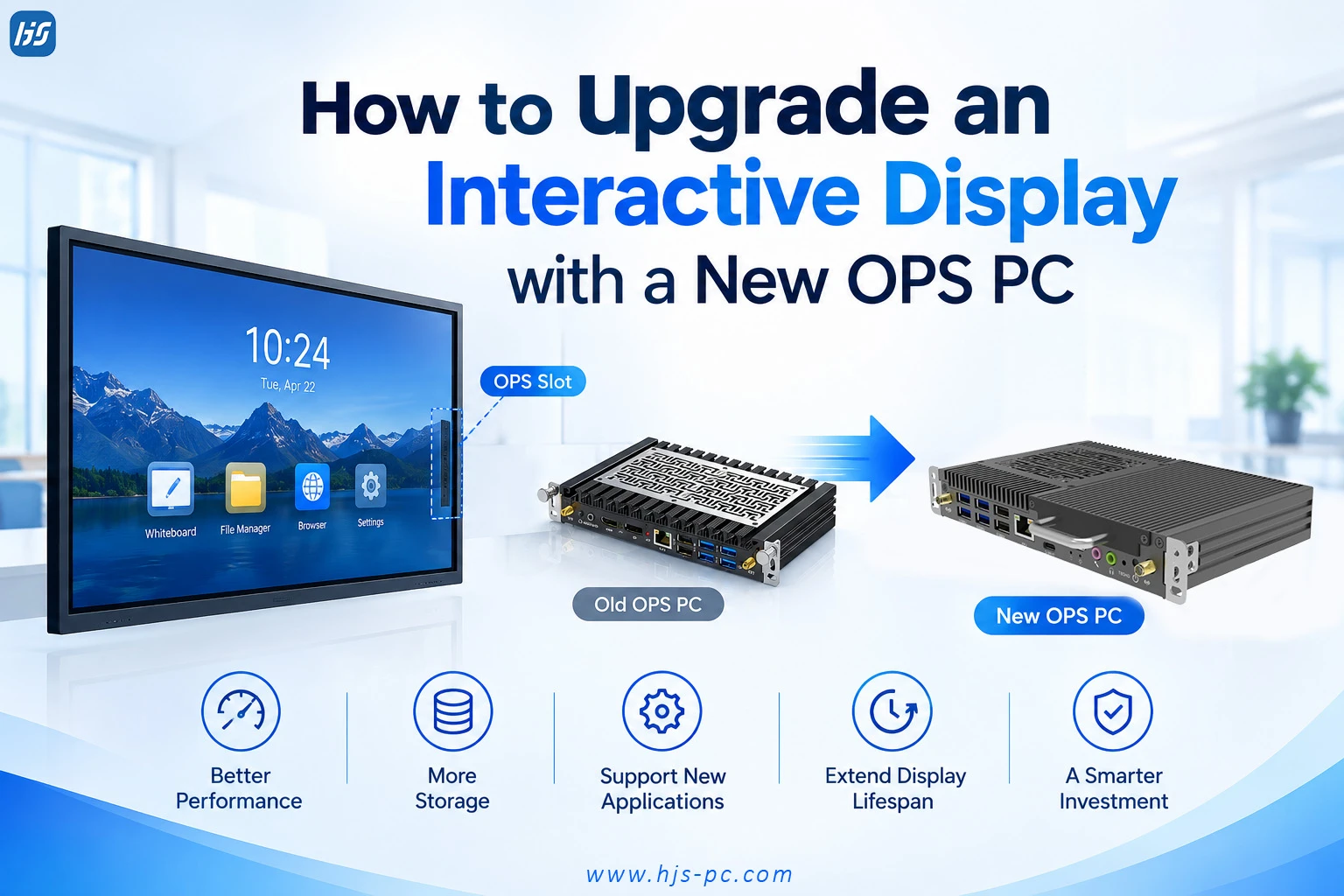
Why Upgrade an OPS PC Instead of Replacing the Entire Interactive Display?
An interactive flat panel typically consists of two main parts:
The display and touch system
The computing system
In many installations, the display itself may still work perfectly even when the computer hardware becomes outdated.
For example, a school may have multiple interactive displays installed several years ago. The display panels may still provide good image quality and responsive touch performance, but the original OPS computers may struggle with newer software, video conferencing applications, or updated Windows requirements.
Replacing the entire interactive display can be expensive and unnecessary.
An OPS PC replacement can provide a more practical upgrade path.
By replacing the old OPS computer with a newer OPS slot-in PC, users may be able to improve:
Processing performance
System responsiveness
RAM capacity
Storage capacity
Operating system compatibility
Wireless connectivity
Bluetooth support
Software performance
This modular approach can help extend the useful life of an interactive display while reducing unnecessary hardware replacement.
When Should You Upgrade Your OPS PC?
Not every performance issue requires a new OPS computer. However, there are several common signs that an OPS PC upgrade may be necessary.
1. The System Is Becoming Slow
Slow boot times and poor application performance are often the first signs of aging hardware.
Users may experience:
Slow Windows startup
Delayed application loading
Lag during presentations
Slow response when switching between applications
Poor multitasking performance
If the system is regularly running multiple applications at the same time, such as whiteboard software, browsers, video conferencing tools, and presentation software, older hardware may struggle to keep up.
In some cases, adding more RAM or upgrading the SSD may improve performance. However, if the processor itself has become outdated, replacing the entire OPS computer module may be the better long-term solution.
2. The Existing OPS PC Cannot Meet New Software Requirements
Software requirements change over time.
Newer versions of operating systems, collaboration platforms, educational software, and business applications may require more processing power and memory than older hardware can provide.
For example, an older OPS PC may have been originally installed for basic:
Presentation
Web browsing
Digital whiteboard applications
Several years later, the same interactive display may be used for:
Video conferencing
Cloud collaboration
Multi-window applications
High-resolution multimedia
Interactive teaching software
As usage changes, the original OPS PC configuration may no longer be suitable.
A newer Windows OPS PC can provide improved performance without requiring the replacement of the entire display.
3. RAM Is No Longer Sufficient
Memory requirements have increased significantly as applications have become more demanding.
An OPS PC with a limited amount of RAM may experience:
Slow multitasking
Application freezing
Delayed response
Reduced performance during video conferencing
If the OPS PC supports memory upgrades, increasing RAM may be enough to improve performance.
However, if the hardware platform is already outdated, investing in upgrades may not provide the best long-term value.
Before upgrading individual components, it is important to consider the overall condition and age of the OPS PC module.
4. Storage Space Is Running Out
Storage is another common reason for upgrading an OPS computer.
Interactive displays used in schools or meeting rooms may store:
Teaching materials
Videos
Presentation files
Applications
Local documents
System updates
Over time, an older SSD may no longer provide enough storage capacity.
If the OPS PC supports SSD replacement or expansion, upgrading the storage may be a simple solution.
However, if the system also has limited processor performance and memory, replacing the entire OPS PC may be more practical than upgrading multiple individual components.
5. The Existing Hardware Is Too Old for Future Use
Eventually, every hardware platform reaches a point where upgrading individual components is no longer cost-effective.
For example, upgrading RAM and storage may improve an older system, but it will not significantly improve:
CPU performance
Integrated graphics performance
Platform compatibility
Support for newer technologies
In this situation, replacing the entire OPS computer module can provide a more complete upgrade.
A new OPS PC may offer a newer processor platform, faster memory, improved storage options, and updated connectivity.
What Can Be Upgraded on an OPS PC?
The upgrade options available depend on the specific OPS PC model and hardware design.
Before making changes, users should check the specifications of the existing unit.
RAM Upgrade
Many OPS PCs support memory upgrades.
Adding more RAM can improve performance when running multiple applications at the same time.
Typical use cases include:
Interactive classrooms
Video conferencing rooms
Corporate meeting rooms
Multi-application environments
However, the maximum supported memory depends on the processor platform and motherboard design.
SSD Upgrade
Replacing an older SSD with a higher-capacity or faster storage device can improve:
System startup time
Application loading
File transfer performance
Available storage capacity
For users whose OPS PC is still based on a relatively modern platform, an SSD upgrade can be an effective way to extend the system's useful life.
Wi-Fi and Wireless Connectivity
Depending on the OPS computer design, wireless connectivity may also be upgradeable.
Newer wireless technologies can improve:
Network performance
Wireless presentation
Video conferencing
Bluetooth connectivity
However, compatibility should always be confirmed before replacing internal wireless components.
When Should You Replace the Entire OPS PC?
Upgrading individual components makes sense when the existing platform still meets current performance requirements.
However, there are situations where a complete OPS PC replacement is the better choice.
Consider replacing the entire OPS PC when:
The processor is outdated
The platform does not support newer operating systems
Multiple hardware components require upgrading
System performance remains poor after upgrades
The existing unit has reached the end of its useful lifecycle
The new application environment requires significantly higher performance
Replacing the complete OPS module provides an opportunity to upgrade the entire computing platform at once.
For example, a system originally designed for basic presentation use may be upgraded to support:
Modern Windows applications
Advanced collaboration software
Video conferencing
Higher-resolution multimedia
More demanding educational software
Can You Replace an Old OPS PC with a New One?
In many cases, yes-but compatibility must be checked first.
Not every slot-in computer is automatically compatible with every interactive display.
Before purchasing a replacement OPS PC, several factors should be confirmed.
1. Check the OPS Slot
The physical dimensions and slot design must match the interactive display.
The replacement module should be designed for the appropriate OPS slot specification.
2. Check the Connector
OPS computers typically use a standardized connector system, but compatibility should still be confirmed.
The connection between the OPS PC and the display is responsible for communication between the computer, display, touch system, and other functions.
A compatible connector is essential.
3. Check Power Requirements
The interactive display must provide the correct power required by the OPS module.
Different hardware configurations may have different power requirements.
Higher-performance processors may require more power than entry-level configurations.
4. Check Display and Touch Compatibility
The new OPS PC should work correctly with:
Display output
Touch functionality
USB touch communication
Audio
Integrated peripherals
This is particularly important when replacing an older OPS module with a newer generation of hardware.
For a more detailed discussion of compatibility, users should also review the key factors involved before installing a new OPS module.
How to Choose the Right New OPS PC
Choosing a new OPS PC should depend on the actual application rather than simply selecting the highest available specification.
A good starting point is to consider how the interactive display will be used.
Basic Applications
For applications such as:
Presentations
Web browsing
Basic whiteboard software
Office applications
A standard configuration may be sufficient.
Education and Training
Interactive classrooms may require additional performance for:
Teaching software
Multimedia content
Multiple applications
Online learning platforms
Video playback
In these environments, a more balanced processor, RAM, and storage configuration may be appropriate.
Corporate Meeting Rooms
Meeting rooms may use:
Video conferencing
Microsoft Teams
Zoom
Wireless presentation
Multi-user collaboration
A higher-performance OPS slot-in PC may provide a smoother experience when multiple applications are running simultaneously.
High-Performance Applications
More demanding applications may require additional CPU and memory resources.
Examples include:
Complex multimedia applications
Multiple high-resolution displays
Advanced collaboration software
Specialized enterprise software
In these cases, the OPS PC configuration should be selected based on the specific software requirements.
Should You Upgrade the Old OPS PC or Buy a New One?
The answer depends on the current hardware.
A simple comparison can help.
|
Situation |
Recommended Solution |
|
System is relatively new but storage is limited |
Upgrade SSD |
|
System has enough CPU performance but limited RAM |
Upgrade RAM |
|
Multiple components are outdated |
Replace OPS PC |
|
CPU performance is insufficient |
Replace OPS PC |
|
System cannot support required software |
Replace OPS PC |
|
Interactive display is still in good condition |
Upgrade or replace OPS module |
|
Display and OPS PC are both outdated |
Evaluate complete system replacement |
The goal should be to choose the most cost-effective solution based on the expected future use of the interactive display.
Benefits of Replacing an OPS PC
A new OPS PC replacement can provide several advantages.
Extended Display Lifecycle
The display may continue to be used without replacing the complete interactive flat panel.
Improved Performance
A newer processor, additional memory, and faster storage can improve the user experience.
Better Software Support
Newer hardware can provide improved compatibility with modern operating systems and applications.
Easier Maintenance
The modular design of an OPS computer can simplify replacement compared with an integrated computer system.
More Flexible Upgrades
Different OPS PC configurations can be selected based on changing project requirements.
This flexibility is one of the reasons why modular computing continues to be relevant in interactive display environments.
Planning an OPS PC Upgrade for the Future
When selecting a new OPS computer, it is important not only to consider current requirements but also future usage.
Before purchasing, consider:
How will the display be used in the next three to five years?
Will software requirements increase?
Will more users be running applications simultaneously?
Is additional RAM likely to be required?
Will storage requirements increase?
Is the system expected to run newer versions of Windows?
Choosing a configuration with some room for future expansion can help reduce the need for another upgrade in the short term.
For example, selecting a configuration with expandable memory or higher storage capacity may provide more flexibility as application requirements change.
Conclusion
An interactive display does not always need to be replaced when the built-in computing performance becomes outdated.
In many cases, upgrading or replacing the OPS PC can provide a practical way to improve performance, extend the lifecycle of the display, and support newer software requirements.
Before deciding whether to upgrade individual components or replace the complete OPS computer module, users should evaluate the current system carefully.
If the existing platform is still capable, a RAM or SSD upgrade may be sufficient. However, when the processor, operating system support, and overall hardware platform have become outdated, a new OPS PC replacement may provide a more effective long-term solution.
The modular design of an OPS slot-in PC makes it possible to upgrade the computing system separately from the interactive display itself. For schools, meeting rooms, enterprises, and system integrators, this can provide a more flexible approach to managing hardware upgrades over time.
FAQ
Can I replace my old OPS PC with a new one?
In many cases, yes. However, you should check the physical slot, connector, power requirements, display communication, and touch compatibility before installing a new OPS PC.
Is it better to upgrade RAM or replace the OPS PC?
If the existing processor and platform still meet your requirements, upgrading RAM may be enough. If the CPU and overall hardware are outdated, replacing the entire OPS PC may provide better long-term value.
Can an interactive display work without replacing the entire screen?
Yes. If the display panel and touch system are still working correctly, replacing or upgrading the OPS computer may extend the useful life of the interactive display.
How often should an OPS PC be upgraded?
There is no fixed replacement schedule. The right time to upgrade depends on system performance, software requirements, hardware condition, and future usage needs.
What should I check before buying a replacement OPS PC?
Check the OPS slot, connector compatibility, power requirements, display output, touch communication, operating system requirements, and the performance specifications required for your application.