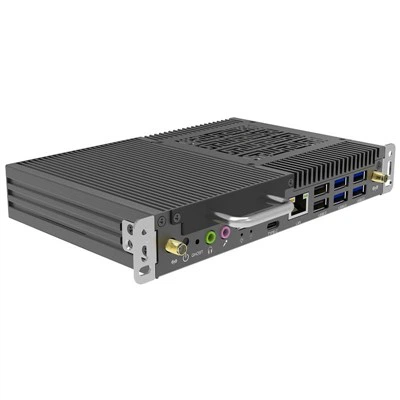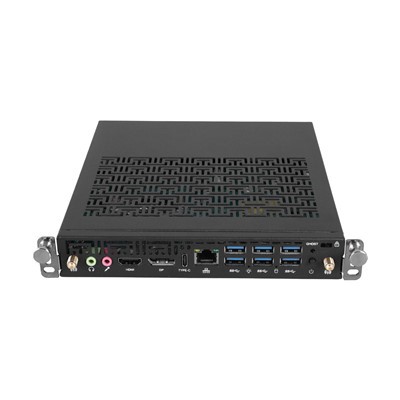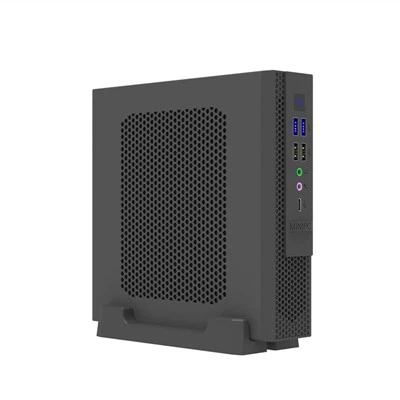

An OPS PC module is a convenient way to add Windows or other computing capabilities to an interactive flat panel display without using a separate external computer.
The concept is simple: the computer module is installed directly into the dedicated OPS slot of a compatible display, creating a more integrated solution with fewer external cables and easier maintenance.
However, choosing an OPS PC is not simply a matter of selecting the processor, RAM, or SSD.
Before purchasing an OPS computer module or OPS slot-in PC, you should first determine whether the module is compatible with the target display.
The good news is that the Open Pluggable Specification was developed to standardize the physical interface and signaling between a modular computer and a compatible display. Intel describes OPS as an industry standard for modular computing units that plug into enabled interactive flat panel displays.
But even with a standardized interface, it is still important to check the actual display and OPS module specifications before installation.
Here are the key factors to consider.

1. Check Whether the Display Has an OPS Slot
The first question is straightforward:
Does the interactive display actually support an OPS module?
Not every interactive flat panel or commercial display has an OPS slot.
An OPS PC is designed to be installed into a dedicated slot on the display. Intel describes the architecture as a modular computing unit that plugs into an OPS slot on an enabled interactive flat panel display.
Before purchasing an OPS PC module, check the display manufacturer's specifications for terms such as:
- OPS
- OPS slot
- OPS PC
- Open Pluggable Specification
- Slot-in PC
Computing module
If the display specification does not clearly mention OPS support, contact the display manufacturer before ordering.
2. Check the OPS Form Factor and Dimensions
Physical compatibility is one of the most important parts of choosing an OPS module.
Even though OPS is designed around a standardized interface, the actual module still needs to fit correctly inside the display enclosure.
Check:
- Width
- Height
- Depth
- Mounting holes
- Screw positions
- Connector position
- Internal clearance
This becomes particularly important when replacing an existing OPS PC or working with displays from different manufacturers.
For example, SMART provides specific compatibility information for its OPS PC modules rather than simply stating that the module works with every display. Its support documentation lists the compatible SMART Board display series for individual OPS modules.
This is a useful reminder for system integrators:
Don't rely on the term "OPS PC" alone. Check the actual display and module specifications.
3. Verify the OPS Connector
The connector is another important factor when checking OPS PC compatibility.
The original OPS architecture standardized the physical interface and signaling between the modular PC and display. Intel specifically describes OPS as an effort to standardize the connector and signals used between the computing module and digital display.
The commonly recognized OPS interface uses an 80-pin connector.
However, simply seeing an 80-pin connector should not be treated as a complete compatibility test.
You should also confirm:
- Connector type
- Connector position
- Electrical specification
- Display-side implementation
- Supported signaling
- Power requirements
For professional projects, asking the OPS manufacturer to confirm compatibility with the exact display model is a much safer approach.
4. Check the Power Requirements
Power is another area that should not be overlooked.
An OPS PC is designed to receive power through the display system rather than operating like a completely independent external Mini PC.
Therefore, the display must be able to provide the required power for the selected OPS module.
Before installation, check:
- Input voltage
- Required current
- Maximum power consumption
- Display power capability
- OPS module power specification
Different OPS computers can have different power requirements depending on their processor and hardware configuration.
This is especially important when upgrading an older display with a newer, higher-performance OPS PC.
5. Check Display Resolution and Video Output
Modern interactive displays commonly support high-resolution content, including 4K and increasingly higher resolutions.
Therefore, video output should be part of your compatibility checklist.
Depending on the OPS computer, available interfaces may include:
- HDMI
- DisplayPort
- Internal OPS display connection
You should consider the complete system rather than looking only at the maximum resolution supported by the computer.
For example:
OPS PC → OPS interface → Interactive Display
The final display performance depends on the capabilities of the entire system.
Current OPS slot-in PCs from ViewSonic, for example, are marketed with support for high-resolution displays, including models supporting up to 5K output.
Before purchasing an OPS PC, confirm:
- Native display resolution
- Supported refresh rate
- Video output interface
- Required graphics performance
- External display requirements
6. Check Touch and USB Connectivity
This is especially important for interactive flat panel displays.
An interactive display is not simply a large monitor. The OPS PC may also need to communicate with the display's touch system and other peripherals.
Depending on the display, this may involve:
- USB
- Touch communication
- Cameras
- Microphones
- Keyboard and mouse
- USB storage
- Other peripherals
Intel's OPS education materials specifically highlight touch-interface connectivity between OPS computing modules and interactive flat panel displays.
SMART also documents USB connectivity between its OPS modules, interactive displays, and external peripherals.
For interactive classrooms and meeting rooms, this can be just as important as video output.
7. Check the Operating System
After physical and electrical compatibility has been confirmed, look at the software environment.
Many customers choose an OPS PC because they want to run a full desktop operating system directly on the interactive display.
Common requirements include:
- Windows 10
- Windows 11
- Linux
Windows-based OPS PCs are particularly common in business, education and collaboration environments.
For example, SMART's current OPS PC modules provide Windows 11 Pro and are designed for its compatible SMART Board interactive displays.
Before purchasing an OPS computer module, check whether the system needs to run:
- Microsoft Office
- Microsoft Teams
- Zoom
- Interactive teaching software
- Digital signage software
- Enterprise applications
- Custom Windows software
The operating system should be selected according to the actual application rather than simply choosing the latest available version.
8. Choose CPU, RAM and SSD After Compatibility
Once compatibility has been confirmed, you can select the appropriate hardware configuration.
This is where many buyers start, but it should actually come later.
For Office and Presentations
A mainstream processor with sufficient RAM and SSD storage can handle:
- PowerPoint
- Web browsing
- Office applications
- Video playback
For Interactive Education
Consider additional memory and graphics capability if the system will simultaneously run:
- Interactive teaching software
- Browser applications
- Multimedia
- Digital whiteboarding
- Cloud platforms
For Meeting Rooms
Video conferencing and multitasking may benefit from a higher-performance processor and additional memory.
For Professional Applications
Applications involving advanced graphics, multimedia or AI workloads may require significantly higher computing performance.
Current OPS products from Intel ecosystem partners are available with a wide range of Intel processor platforms, showing that OPS is not tied to a single performance level.
The basic rule is:
Confirm compatibility first. Select performance second.
9. Check Network and Wireless Connectivity
Network connectivity is another consideration for modern interactive display projects.
Depending on the application, an OPS computer may need:
- Gigabit Ethernet
- Wi-Fi
- Bluetooth
- Wireless peripherals
For example, SMART's OPS PC documentation notes that supported modules can use the interactive display's network connection, while the module itself also provides USB and other connectivity options depending on the model.
Network requirements can be particularly important for:
- Video conferencing
- Cloud-based education
- Digital signage
- Remote management
- Enterprise applications
- Online collaboration
Make sure the selected OPS module supports the network architecture required by your project.
10. Consider the Installation Environment
An OPS PC operates inside the display enclosure, so thermal and environmental conditions should also be considered.
Check:
- Operating temperature
- Storage temperature
- Ventilation
- Airflow
- Dust
- Installation location
- Operating hours
This is particularly important for commercial installations where the display may operate for long periods.
A module designed for a normal meeting room may have different requirements from a computer installed in a retail environment or other demanding commercial application.
Always check the manufacturer's specifications for the exact OPS model rather than relying on general OPS specifications.
11. Don't Assume Every OPS Module Is Compatible With Every Display
This is perhaps the most important practical point.
The OPS standard is designed to improve interoperability, but actual product compatibility still needs to be verified.
For example, ViewSonic describes one of its OPS slot-in PCs as compatible with OPS-compliant interactive or commercial displays.
SMART, on the other hand, publishes specific supported display series for its OPS PC modules.
These examples show why buyers should distinguish between:
OPS standard compatibility
and
verified product compatibility.
For an OEM, distributor or system integrator, the second one is what really matters.
12. What Information Should You Provide to the OPS Manufacturer?
If you are unsure which OPS PC module to choose, provide the manufacturer with as much information about the target display as possible.
Ideally, provide:
Display Information
- Brand
- Model number
- Screen size
- Product datasheet
- OPS slot specification
Mechanical Information
- Slot dimensions
- Module dimensions
- Mounting-hole position
- Photos of the OPS bay
Technical Requirements
- CPU
- RAM
- SSD
- Operating system
- Display resolution
- Touch requirements
- Network requirements
Project Information
- Application
- Quantity
- Installation environment
- OEM/ODM requirements
For large-volume projects, providing a technical drawing or sample display can make the compatibility evaluation much more accurate.
OPS PC Compatibility Checklist
Before ordering an OPS module, use this checklist:
|
Compatibility Item |
What to Check |
|
OPS Slot |
Does the display support OPS? |
|
OPS Standard |
Which OPS specification is supported? |
|
Dimensions |
Width, height and depth |
|
Mounting |
Screw holes and mounting position |
|
Connector |
80-pin OPS interface and implementation |
|
Power |
Voltage and current |
|
Display Output |
HDMI / DisplayPort / internal interface |
|
Resolution |
4K / 5K / 8K and refresh rate |
|
Touch |
Touch and USB communication |
|
Operating System |
Windows / Linux |
|
CPU |
Required computing performance |
|
RAM |
Required memory |
|
SSD |
Capacity and interface |
|
Network |
Ethernet / Wi-Fi / Bluetooth |
|
Environment |
Temperature and ventilation |
|
Compatibility |
Manufacturer confirmation |
Common OPS Compatibility Mistakes
Choosing by Processor Alone
A high-performance Intel processor does not guarantee that the module will fit or work correctly with the display.
Check the OPS specification first.
Assuming All OPS PCs Have the Same Dimensions
Different products can have different physical configurations.
Always compare the mechanical specifications.
Checking Only the Connector
An 80-pin OPS connector is important, but it is only one part of the compatibility equation.
Check the complete system specification.
Forgetting Touch Connectivity
An interactive display requires more than a video signal.
Check how touch and USB communication are handled.
Ordering Before Verification
This is especially risky for projects involving dozens or hundreds of displays.
Confirm compatibility before placing a bulk order.
Final Thoughts
Choosing an OPS PC should begin with compatibility-not processor performance.
Before installing an OPS PC module, check the complete connection between the computer and the interactive display:
OPS slot → form factor → dimensions → connector → power → display output → touch → operating system → network → environment
Once these requirements have been confirmed, you can select the appropriate CPU, RAM and storage configuration based on your application.
The Open Pluggable Specification provides an important foundation for modular computing in interactive flat panel displays. It allows compatible computing modules to be integrated directly into displays while reducing external cabling and simplifying deployment and maintenance.
For OEMs, distributors and system integrators, however, the most important step is still to verify the compatibility of the specific OPS module and specific display model before installation.
FAQ
Can any OPS PC work with any interactive display?
Not necessarily. The display must support the relevant OPS specification, and the physical, electrical and system requirements should be verified. Some display manufacturers publish specific compatibility lists for their OPS modules.
What is an OPS PC module?
An OPS PC module is a modular computer designed to plug into an OPS-enabled interactive or commercial display. Intel describes OPS as an industry standard for modular computing units integrated with compatible displays.
What is an OPS slot-in PC?
An OPS slot-in PC is a computing module designed to slide into an OPS slot on a compatible display. ViewSonic, for example, uses "OPS Slot-in PC" as a product category for its interactive and commercial display solutions.
What should I check before buying an OPS PC module?
Check the display's OPS slot, physical dimensions, connector, power requirements, display resolution, touch communication, operating system and application requirements.
Does an OPS PC support Windows 11?
Many current OPS PC modules support Windows 11. For example, SMART's current OPS PC modules are offered with Windows 11 Pro and Intel Core processors.